Screen Recorders Solo Course Creators Actually Reach for When Demoing Software Step by Step
Compares recorders on readable capture, easy fixes, and sharing.
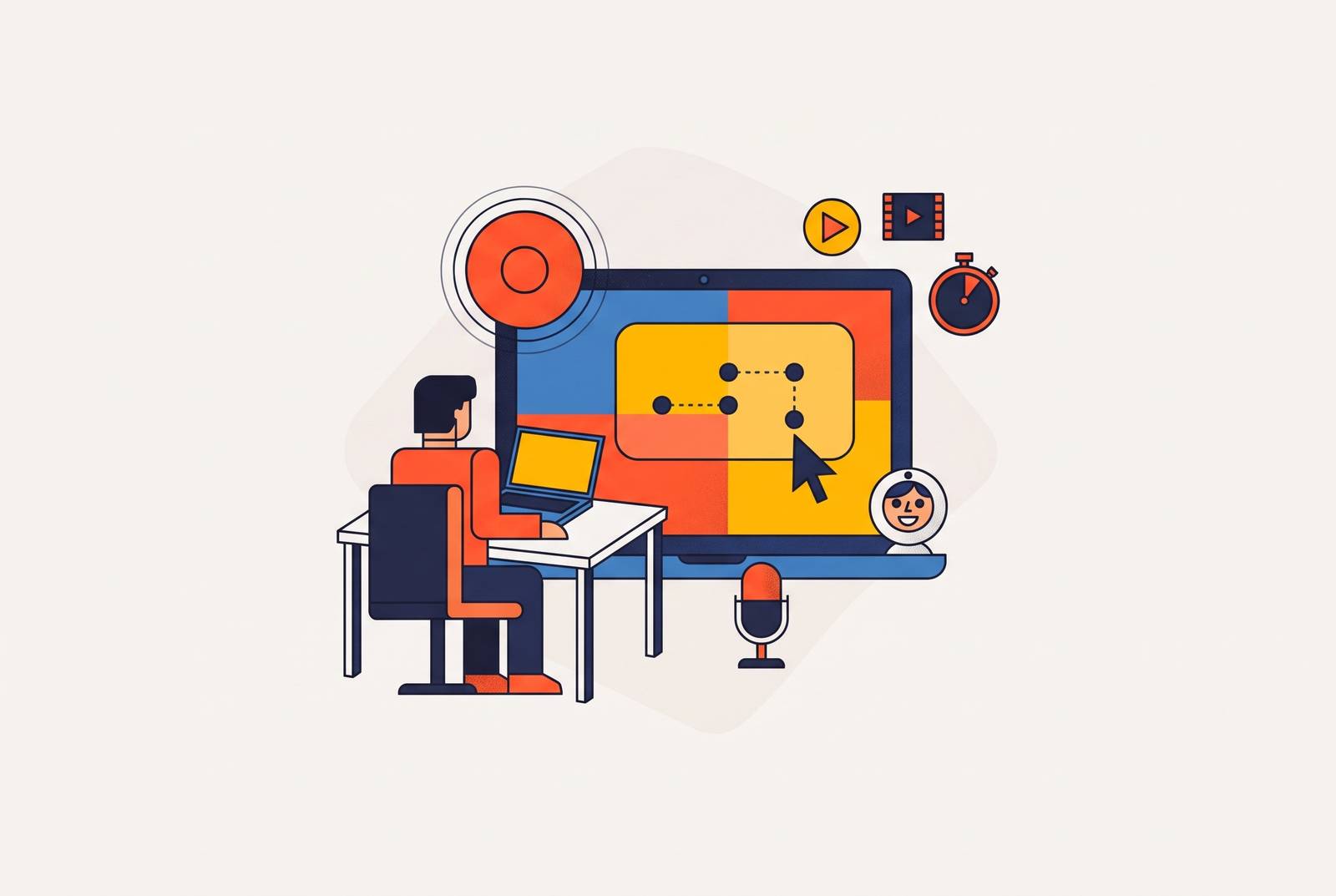
For solo software-course creators, the right screen recorder combines readable capture, easy mistake cleanup, and fast sharing without a trip to another editing app. ScreenFlow works well for Mac users who want deep editing, while OBS Studio works well for creators who already have an editor. For non-editors, transcript-based cleanup is the approach to prioritize, with audio quality as a fourth test.
Why solo course creators have a different recording problem than other video makers
A solo software-course creator is teaching and producing at the same time. The interface must stay readable, the explanation must follow the clicks, and the finished lesson must reach students without a long post-production detour. There is no editor waiting to rescue the footage. Unlike a streamer choosing a capture setup or a team dividing production jobs, the solo creator absorbs every extra step personally.
That makes a verbal stumble more than an awkward moment. A missed instruction can mean recording the lesson again or moving the footage into another app to repair it. At the same time, full-screen capture at standard resolution can make buttons and menu labels too small to read. A perfect recording of an unreadable menu is still a lesson in squinting. Even after cleanup, a local file needs uploading and hosting before a student can watch, so generic advice about recording quality misses much of the job.
The four things a recorder must do before it earns a place in a solo course creator's workflow
Readable capture is the first test, and resolution alone does not pass it. Students need to see which control is active and where the next click goes. Cursor emphasis, click highlights, and auto-zoom toward the active interface element serve that purpose without manual keyframing afterward. Capturing the whole desktop is not enough if the teaching happens inside one tiny menu.
Stumble recovery is the second test, because a recorder should make mistakes cheap to fix. A 20-minute recording with five errors should not demand another full performance. Cutting mistakes, removing filler words, and editing through a transcript are different ways to get there. The distinction appears after the stop button. A speed-first tool produces a link, while a production-first tool provides editing controls, and a solo creator needs to consider both.
Instant sharing is the third test, with audio quality as the fourth. With a hosted link, the creator can get a local file to a student without separate steps for upload, compression, and hosting. Narration needs the same care because it is half the lesson, and unwanted system noise can add more work to clean up.
OBS Studio — best for free capture when you already have an editor
OBS Studio is a great free, open-source choice for advanced recording and live streaming. It has no watermark or time limit and supports high-resolution capture, flexible scenes, multi-source recording, separate audio tracks, and hardware encoding. Those are substantial strengths in a free tool. Its configurability makes sense for creators who want control over capture and already know where the footage will go next.
The gap is what happens once recording ends. To cut mistakes, add zoom, or clean recorded audio, the creator must take the file into a separate editor. The OBS knowledge base describes multiple audio tracks as useful when working with an editor after recording, which makes the intended handoff clear. That handoff becomes a problem when the goal is to record, fix, and publish in one place.
ScreenFlow — best for Mac creators who want deep editing with capture
ScreenFlow has a recorder and a timeline for deep editing in the same Mac app. For long-form courses on Apple hardware, it is the strongest single-app option here when editing depth is the priority. It is a one-time purchase. The platform restriction is firm, however, because it does not run on Windows. An excellent Mac editor is not a Windows solution with enough positive thinking.
Its multi-track timeline, zoom-and-pan effects, annotation overlays, and callout bubbles give creators the tools to do the visual work that software lessons need. A creator can move from capturing a process to directing attention within that recording without opening another editor. That closes the separate-editor gap left by OBS. Creators can use these teaching tools without much nonlinear-editing experience, though they still have to work with a timeline. Depth and approachability are related, but they are not interchangeable.
The remaining cost is editing time. In a 20-minute lesson with mistakes here and there, the creator still has to find and cut them, which takes longer for someone who is uneasy scrubbing waveforms. ScreenFlow therefore fits creators who want control over the finished sequence and are willing to use timeline tools to get it. Its strongest case is integrated capture and substantial editing. That distinction keeps a good Mac recommendation from becoming an answer to every recording problem.
How can you edit recording mistakes without learning a timeline?
Transcript-based editing changes the object the creator works on. Instead of locating a verbal mistake on a waveform, the creator finds it in the recording’s text transcript. Highlighting and deleting the flubbed sentence updates the video to match. The edit follows the words rather than timecodes. That removes the need to scrub, use a razor tool, or make frame-accurate selections for this kind of correction.
For software demos, that is a close fit to the actual difficulty. The creator is concentrating on demonstrating the product correctly while explaining what is happening, so a sentence can go wrong even when the clicks go right. Reading that sentence is a familiar task. Finding its exact boundaries on a timeline is a separate skill that some teachers would prefer to avoid learning before publishing a lesson.
Filler-word removal extends the same approach to smaller interruptions. Automated or one-click tools can flag “um,” “uh,” and false starts for removal in bulk, while silence removal addresses long pauses. A 20-minute recording with scattered filler can become clean in minutes through this method. The attraction is the reduction in repeated cleanup work that would otherwise sit between a useful demonstration and a publishable lesson.
Other AI-assisted capabilities can support the same workflow, including text-to-speech mistake correction, auto-generated subtitles, and captions. During capture, a teleprompter can help the creator stay on script, while an invisible recorder removes the pressure of a visible countdown. Animated cursor effects and background options make the video look more polished without work on each frame. These capabilities are distinct from transcript editing. These tools help when they meet the creator’s needs for recording and cleanup.
For a non-editor, the lesson is to prioritize this editing method while evaluating the full path to publication. Transcript cleanup does not by itself establish that a tool records screen, camera, and system audio or makes the result instantly shareable. Those remain separate requirements to assess. Where instant upload and hosting are built in, a shareable recording can be available when capture ends without a separate hosting account.
Guideflow — best for guided, clickable walkthroughs rather than passive video
Guideflow turns a captured workflow into a clickable, annotated step-by-step demo. The student moves through the process interactively. That makes it a legitimate choice for software onboarding modules where following the sequence is more useful than watching someone else perform it.
In that setting, the student controls the pace and cannot accidentally skip a required step. A clickable demo can also serve a course creator building a written help center as well as a video library. The format does a different teaching job. Guideflow’s place is the interactive layer, with traditional lessons that need narration, cleanup, and a shareable video link left to a general-purpose screen recorder with a built-in video editor.
ScreenRec — best for free, instant private sharing
ScreenRec fits the narrower need for a quick hosted recording link. It records the screen and immediately supplies a shareable cloud link, with no watermark or time limit on the free plan. A creator who already has the tools to capture and edit may not need another paid production app just to get a recording online.
ScreenRec does not include a built-in editor for stumble recovery, transcript-based editing, or auto-zoom for software demos. A polished course lesson can therefore still require a separate editing step. Free sharing does not remove that production work. Its clearest role is as a secondary tool for quick internal drafts or student feedback rounds, where the immediate link is more useful than a full editing suite.
How to match the right tool to where you are in your course-creation workflow
The practical choice starts with the work already happening after capture. If that work lives in DaVinci Resolve or a comparable nonlinear editor, OBS is the correct free baseline for unlimited, watermark-free recording. A built-in editor might not save a step if the creator already plans to edit elsewhere. Existing editing habits change the buying decision.
For a creator who makes long-form courses on a Mac and is at ease with timeline editing, ScreenFlow has capture and deep cleanup tools in one app. For someone who mainly struggles to find and remove spoken errors, transcript-based editing should come first instead. These are different answers to different bottlenecks. Neither preference excuses unreadable capture, poor narration, or a cumbersome route to sharing.
The choice of output comes next. Guideflow fits an interactive walkthrough, with a separate recorder for traditional video lessons, while ScreenRec closes the gap when the only unmet requirement is a free hosted link. Not every recording needs the same treatment. A quick feedback clip and a finished course lesson have different cleanup demands, so the primary production tool need not also be the tool used for every small exchange.
Regardless of the recorder, the lesson is to build short, single-concept videos around one software feature at a time. When an interface changes, a modular library lets the creator update the course by replacing one clip. This is protection against future production work.
Close apps that are not needed, hide the dock or taskbar, and turn off notifications. Increase the font size in code or terminal windows so the text remains readable at 1080p. No recorder can compensate for a cluttered screen, and the best editing workflow is still helped by a lesson that starts with fewer distractions.